
SotaProxy and Social Browser: A Practical Checklist for Proxy Routing Across Separate Profiles
For a team managing several client workspaces, a browser profile and a proxy endpoint solve different problems. The profile separates browser data and account sessions. The proxy determines the route taken by network traffic. Treating one as a replacement for the other leads to configuration mistakes, difficult debugging, and misleading test results.
This guide describes a practical verification workflow for Social Browser users evaluating SotaProxy as one possible source of proxy endpoints. It focuses on authorized team workflows, observable results and realistic limitations. It does not claim a built-in vendor integration, guarantee successful website logins, or imply that a particular proxy product has passed a Social Browser compatibility test.
First, define the boundary of each workspace
Suppose a small operations team maintains three separate workspaces: a client's reporting portal, a regional storefront staging environment, and a public-site QA project. The team needs to keep the cookies and local session state of these environments separate. At the same time, it may need to test different network routes. Those two requirements should be recorded separately.
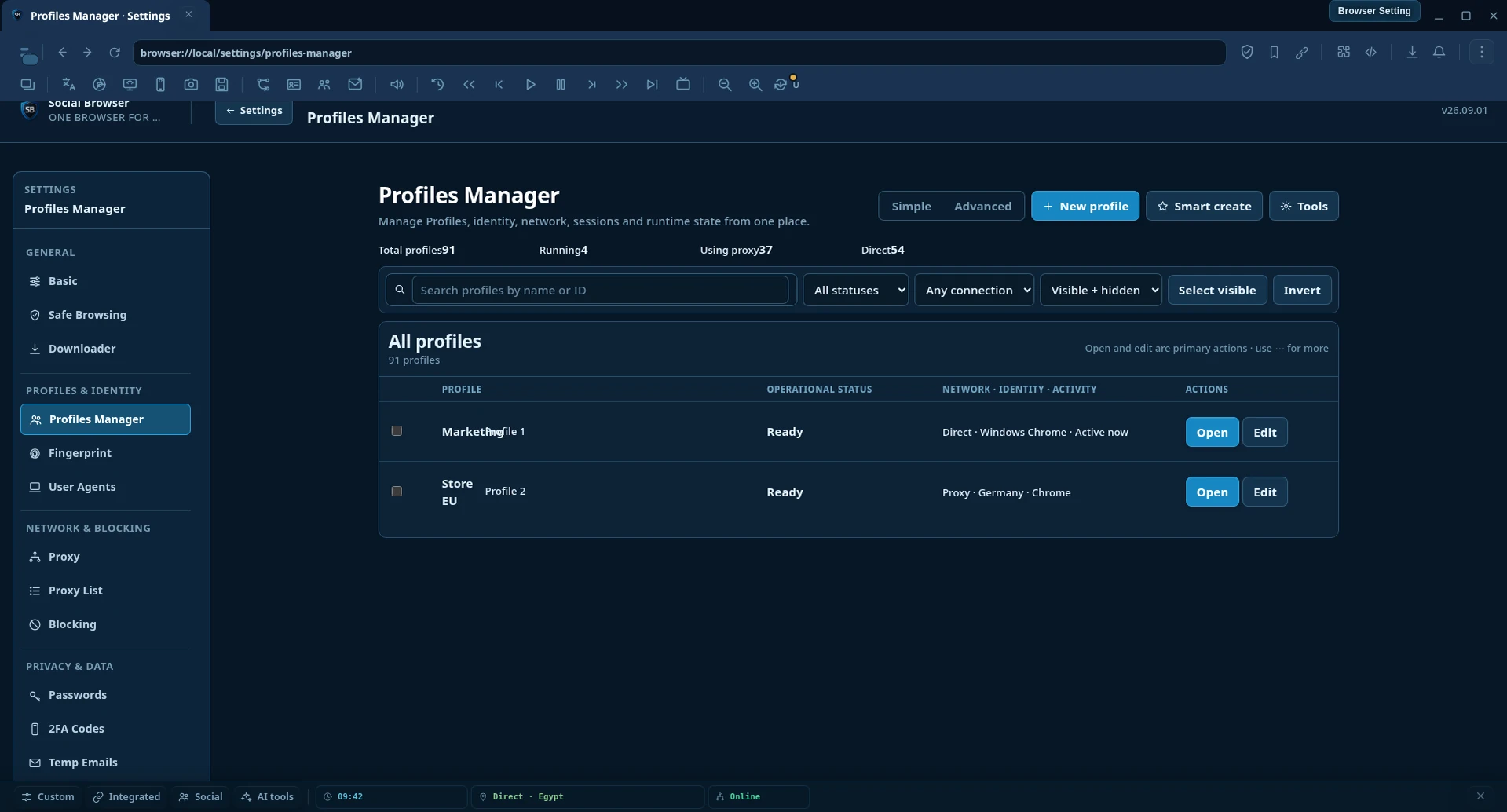
In Social Browser, start by creating a dedicated Profile for each authorized workload. Give the Profile a name that communicates the customer or project and its purpose, and use Groups and Tags to reflect ownership and function. For example, a project might have a profile for reporting, another for quality assurance and a third for testing a regional content experience. Names should not expose credentials or private identifiers.
Each Profile can maintain its own browsing session state. However, independent Profile storage does not itself mean that the Profiles have unique public IP addresses. If two Profiles use the same direct connection, the network route may be identical. If two use one provider account, they might also share an exit address, depending on the endpoint and the provider's allocation rules.
Choose the route according to the task, not a marketing label
Proxy services generally distinguish between datacenter, residential, ISP/static and mobile egress. SotaProxy describes offerings in these categories, along with HTTP(S) and SOCKS5 connectivity, geographic targeting, rotating endpoints and sticky-session capabilities. Verify the current availability, plan terms and endpoint details in the provider's own account dashboard before setting up a workflow. A feature listed for a provider is not necessarily included in every plan.
| Route | Useful when | Check before deployment |
|---|---|---|
| Direct network access | Baselining a test or using systems that do not need a proxy | Known public egress, expected location and company policy |
| Datacenter proxy | Repeatable authorized network tests and permitted technical workloads | Endpoint stability, IP origin, authentication and the target site's access rules |
| Rotating residential proxy | Permitted stateless regional checks where an address change is acceptable | Rotation interval, actual location, cost and session continuity requirements |
| Static ISP or sticky connection | Workflows that require stable network egress over a meaningful interval | Expected persistence, session identifier, renewal policy and failover behavior |
| Mobile proxy | Authorized testing of mobile-carrier routing | Available region, carrier attributes, bandwidth and operational cost |
None of these categories is inherently a guarantee of better account access, privacy or acceptance by third-party websites. A proxy changes routing, but it does not override a service's account rules or the need for legitimate access.
A six-step setup and verification method
1. Keep a minimal configuration record
For each Profile, record the project, intended route type, expected country or region, responsible operator, date of the last test and a reference to securely stored credentials. Avoid placing proxy passwords in a spreadsheet or an automation log. This lightweight inventory makes unexpected routing changes easier to trace.
2. Collect the exact provider endpoint
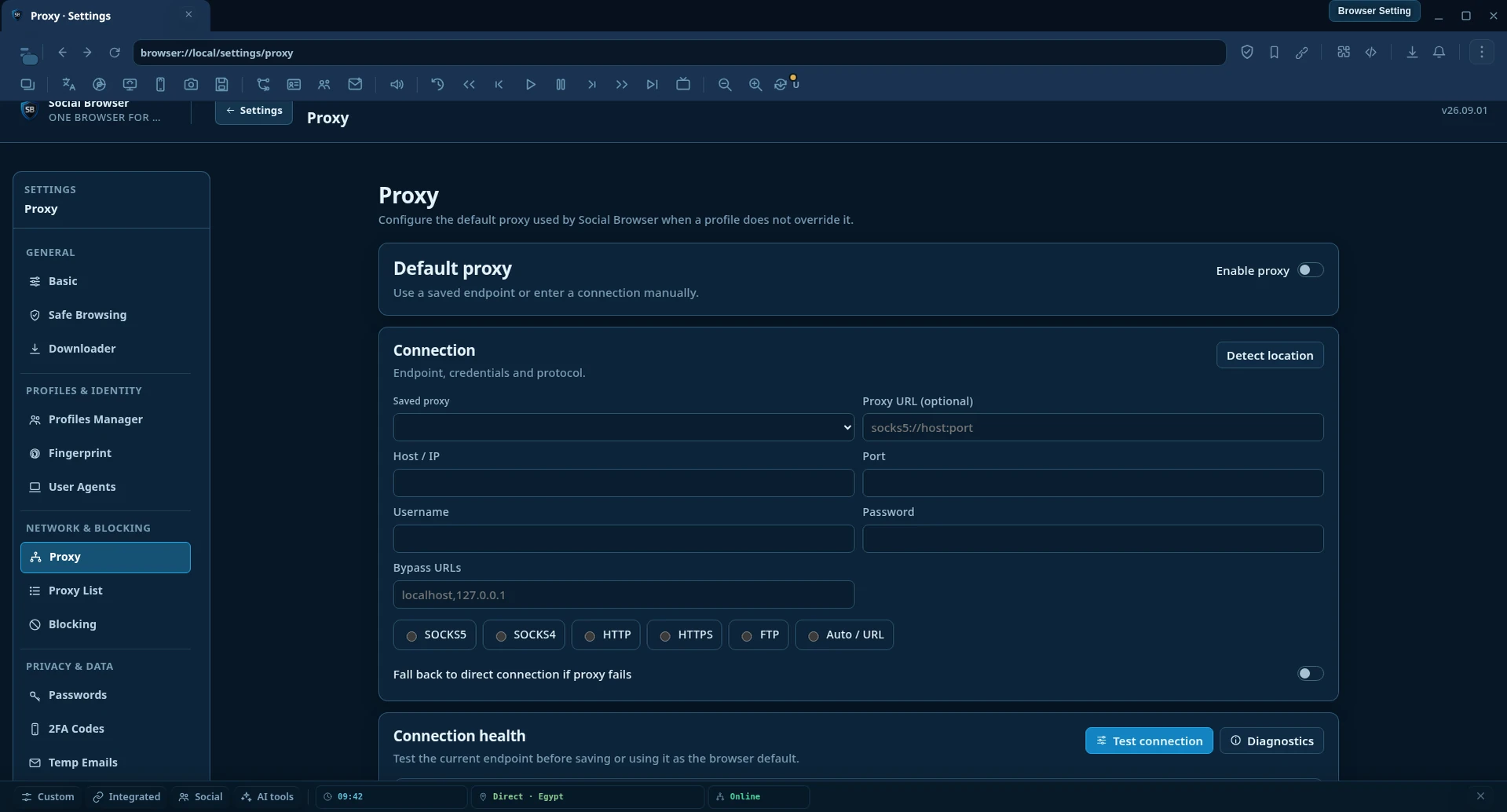
In the provider's dashboard, obtain the host, port, protocol, username and password (if required). Do not assume that a credential intended for an HTTP proxy works unchanged for a SOCKS5 endpoint. Consult current SotaProxy instructions for the specific product, authentication method and session policy chosen.
3. Configure the intended Profile
Open the selected Social Browser Profile's proxy configuration, choose the supported protocol and enter the endpoint. Confirm that settings have been saved to the correct Profile. If a direct connection is required, make that choice explicit rather than relying on an old configuration. A second operator should be able to identify exactly which route belongs to which workspace.
4. Verify public network egress
Open a neutral IP-checking service inside that Profile. Note the reported public IP address and location and compare them to the expected route. Repeat after reopening the Profile. For sticky routes, compare results across the interval required by the workload; for rotating routes, check whether the observed change fits the chosen policy. A saved proxy name is not proof of a working network route.
5. Test browser state independently
Use an authorized test account or staging site to confirm that the Profile maintains the intended cookies and local state. Run the same test in another Profile to verify that the browsing contexts are separate. A successful IP check tells you nothing about whether application storage is isolated; that is a distinct acceptance test.
6. Record a result and a recovery action
A useful result is more than “working.” Save the test date, Profile identifier, selected protocol, observed IP and pass/fail reason. For failures, separate proxy authentication errors from page-load problems, target-service denials and automation errors. Never place secret credentials in screenshots or reports.
Scale with Automation Studio only after a manual pilot
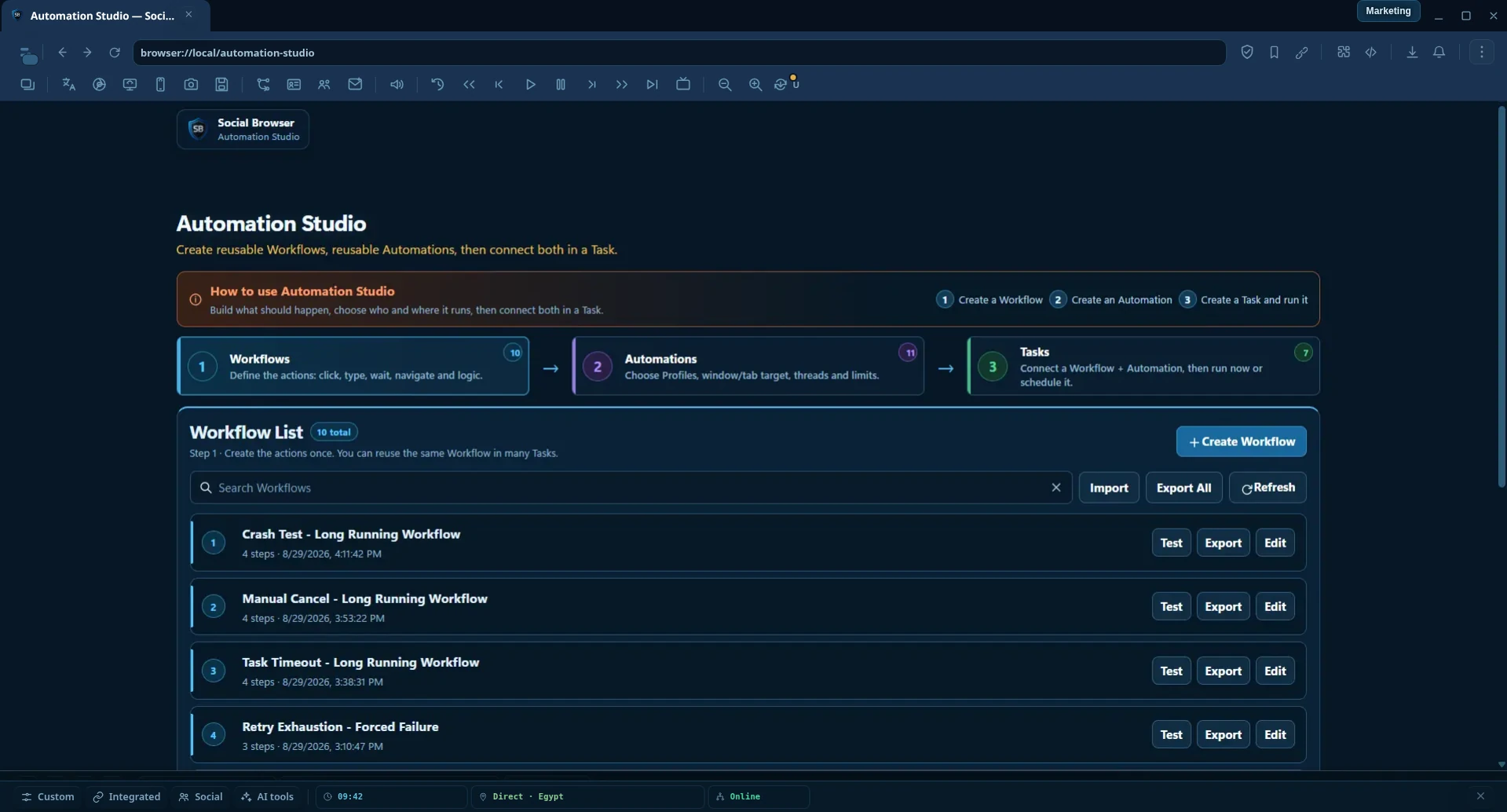
Once the route and session-state checks succeed manually, repeat the approved test with a small workflow in Automation Studio. Start with one Profile. Open a known test page, wait for an expected page state and record whether the result meets the acceptance criteria. Then test a small group of Profiles before considering broader parallel execution. This approach helps distinguish a broken workflow from a misconfigured route.
For each run, capture enough information to diagnose failures: Profile identifier, expected task, network status, page-readiness status, elapsed time and an error category. A generic “failed” result is less useful than “proxy authentication failed before navigation” or “page loaded but expected element was absent.”
Do not automatically retry access denials, change identities to evade account restrictions, or run workflows against systems without authorization. Automation is a way to make permitted work repeatable, not to bypass rules.
Troubleshooting: use the symptom to select the next test
| Observation | First question | Next step |
|---|---|---|
| Proxy authentication error | Are host, port, protocol and credentials current? | Recheck the provider dashboard and test the exact endpoint |
| Unexpected public IP | Is a route shared or rotating? | Confirm endpoint and session policy; retest inside the affected Profile |
| Profile opens but an action fails | Did the page reach the expected state? | Review navigation logs and selectors in a controlled test |
| Two Profiles show one IP | Were distinct exit addresses actually allocated? | Inspect both route assignments and the provider's allocation behavior |
| Previous session remains visible | Is the browser state coming from the intended Profile? | Verify cookies/storage using permitted test data |
Questions teams ask
Can every Profile have a different proxy?
Social Browser supports per-Profile proxy configuration. Whether each configured route produces a different public IP depends on the exact endpoint and provider policy. Verify rather than assume.
Does using a proxy make separate Profile cookies unnecessary?
No. Cookie and session storage are application-state controls; the proxy is a network control. They address different needs and should be tested separately.
Can SotaProxy be used through the browser's normal proxy settings?
The provider describes standard HTTP(S)/SOCKS5 proxy options, and Social Browser provides corresponding proxy configuration. Check protocol and credential compatibility on the exact service you select. This is a configuration approach, not a claim that a formal vendor integration or end-to-end compatibility certification has been completed.
Should we run twenty Profiles at once immediately?
No. Begin with one, verify the expected behavior, then increase the number gradually under a documented concurrency and recovery policy. The right limit depends on machine capacity, network characteristics and the actual workflow.
Build an auditable operating routine
Repeat the basic checks after a proxy subscription change, a route-policy update, a browser upgrade or a transfer of work to another operator. Record the evidence and keep it free of personal account data. This is what makes a multi-profile arrangement maintainable: not the number of accounts open, but the ability to explain how each workspace is configured and why its results can be trusted.
For a starting point, visit the Social Browser homepage and review the current product facts. For the available proxy categories and terms, consult SotaProxy's official service page. Treat any provider-specific settings as inputs to verify in a small, authorized pilot.
Editorial disclosure: SotaProxy and Social Browser have an agreed reciprocal partnership listing and content collaboration. This guide is informational, is not a paid placement, and does not claim an exclusive technical integration.
